#
Some screenshots of the original post did not survive. Part I of the series was not recovered from the web archive.
Scharpen your ABAP Editor for Test-Driven-Development (TDD) – Part IV.
Tips and Tricks for using the Object Navigator
Tips and Tricks for using the Object Navigator
I´ve tried to implement some methods and techniques in my daily work as an agile ABAP Developer. Some works for me and some works for others 🙂
Autocompletion in SE80
Imagine that you follow the clean code suggestions and try to use self describing variable names. But if you have to write longer names than it could happen that you forget some letter and you got an syntax error…
The Solution is easy, try to use as often as you can the Autocompletion by hitting the Keyboard-Functions (CTRL + Space)
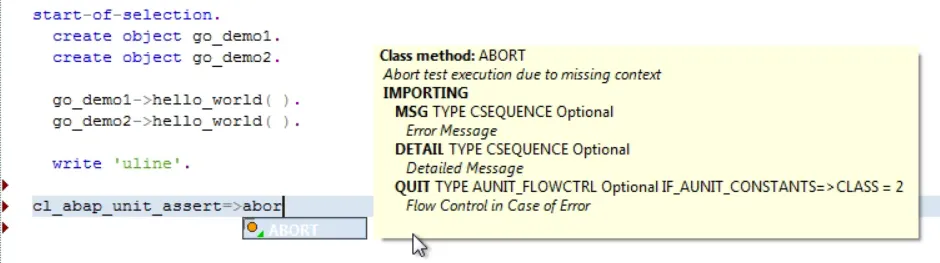
you don´t have to write the syntax word complete, just Hit the Keyboard-Functions and you will get the possible execution Parts.
And now the important Part, if you wish to autocomplete then hit (CTRL + SHIFT + ENTER) and also the Parameter Values will be generated:

Drag and Drop in SE80
While you Drag the Method the Cursor will Changed into an + Sign
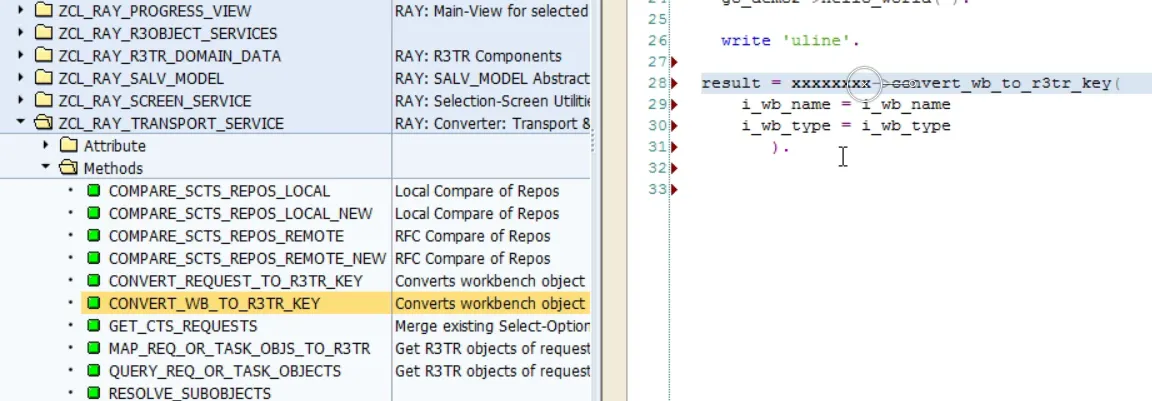
The Sources inclusive the Returning Parameter are generated.
Navigation in the Repository Search Control
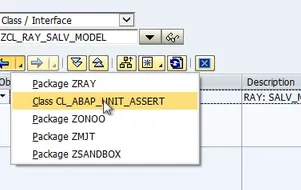
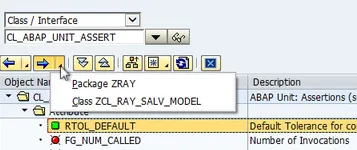
Over a long working day you navigate and analyze a lot of coding. Your Navigation root is saved into the Previous Tree and Next Tree Buttons.
This would help you to find quickly your used sources:
Using the Previous Tree:
and the Next Tree Button:
Navigation stack and Worklist
For your current session the SAP System will save your Navigation stack. This stack could be displayed with the Menu
Utilities > Display navigation window or by using the Keyboard-Functions (CTRL + Shift + F4 )
Then the Navigation stack will be displayed at the bottom of your right Editor Control:
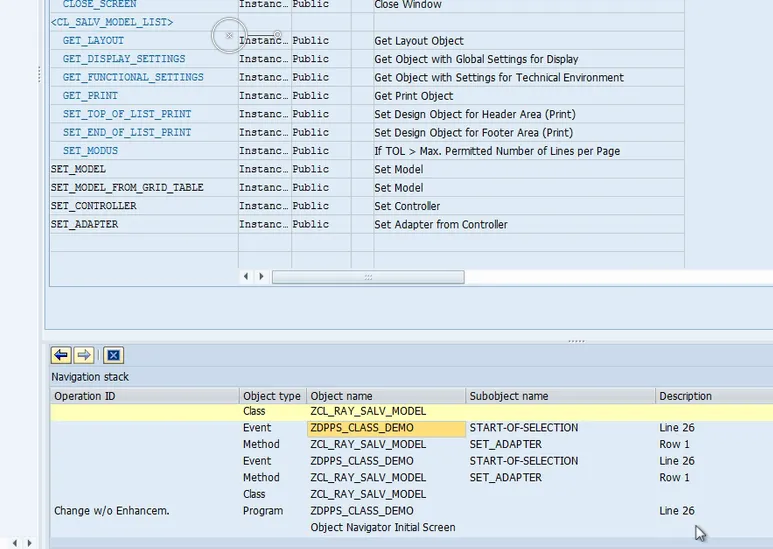
With the left or right Button you could navigate in the stack, or if your navigation stack is too long then you could maybe select all items by (CTRL + A) and DELETE the Items. This is really helpful but when you shutdown your system the navigation stack will be deleted…
Is there an other Option – Yes use additionaly the Worklist 🙂
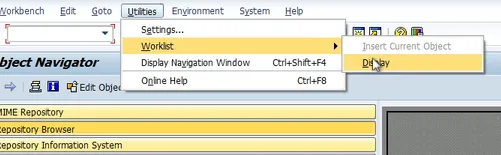
after Opening the Worklist in the Menu with **Utilities > Worklist > Display **:
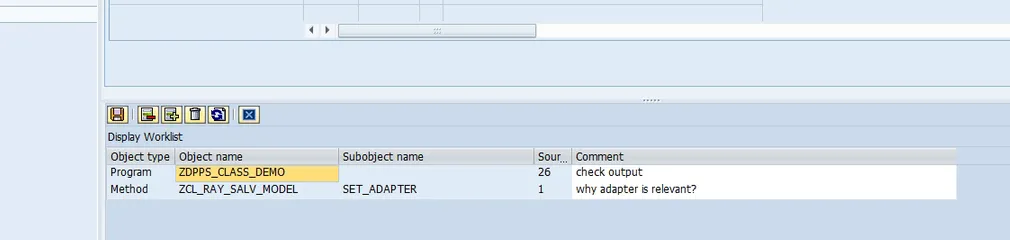
The great advantage of the Worklist is that the Items will be save permanent, and you have in the Comment Column the Option to comment some analysis Findings. Or Todo Notifications… Ok it is not comparable as the Mylyn Eclipse TODO Plugin, but it helped me a lot to organize my daily programming work!
My experience is..
Try every Hint that could you speed up in programming. Some Tips work for you and some doesn´t.
It´s up to you to become familiar with every Option, that would help you to master your editor.
Try out the Tips. Look if it speed up your work.
Your experience is?
What is your experience with using the above Tips?
What was good and what could be implemented better?
Have you something diffrent that works for you?
Further Information
Blogs in this Series:
- Sharpen your ABAP Editor for TDD Part I.
- Sharpen your ABAP Editor for TDD Part II.
- Sharpen your ABAP Editor for TDD Part III.
- Sharpen your ABAP Editor for TDD Part IV.
Summary
This Series ends with this Blog. I hope that you find some at least interesting stuff.
If you have others and also useful Tips so dont hesitate and post a comment!
Cheers, Damir 😉