#
Some screenshots of the original post did not survive. Part I of the series was not recovered from the web archive.
Scharpen your ABAP Editor for Test-Driven-Development (TDD) – Part II.
How to optimize your Performance by using the new ABAP Editor
Creating user specific Templates in the new ABAP Editor
For following commands we will create Templates:
- local Classes
- local Test-Classes
- Testmethod definition
- Method implementation
- assert_equals Statements
- fail Statements
so, let us begin…
First you have to verify if you use the New Front-End Editor. Call the Transaction SE80, and then choose the Menu Utilities->Settings.
Go to the ABAP Editor Tab and check that the New Editor is activated:
If the displayed Dialog looks a littlte diffrent in your System, don´t worry maybe you have an newer System then I used (Trial-Version NW7.00) for this Blog 😉
Now it is possible to go into the Object-Navigator (Transaction SE80), open an ABAP Report and Click on the
to open the Front-End Editor Options click the Button on the lower right side.
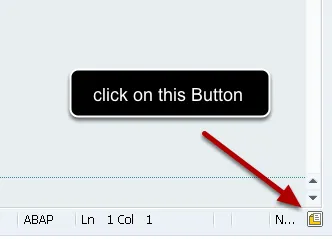
The Options Dialog opens. Here is the starting Point to create your own Templates. Select on the left-hand side the Entry “Code Templates”
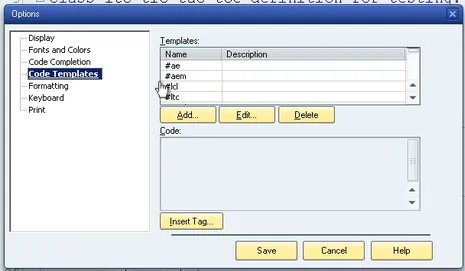
By clicking on the Add... Button, you can add your own Code-Templates. These Templates are only available for your currsten SAP-User.
In the now opend Dialog-Box you enter in the Name-Form the Keyboard-Shortcut you will create and in the Description-Form a short Description what this Template will offer:
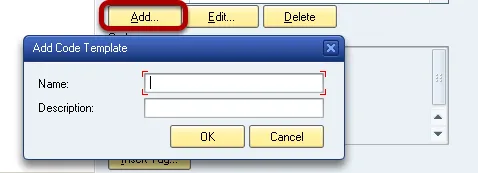
I use the Prefix ‘#‘ for all my Keyboard-Shortcuts. So it´s easy for me to know what are SAP-Standard-Templates and what are my Customn-Templates.
local Classes
Shortcut-Name: #lcl Description: local Class Creation
class %local Classname% definition.
public section.
|
endclass.
class %local Classname% implementation.
endclass.
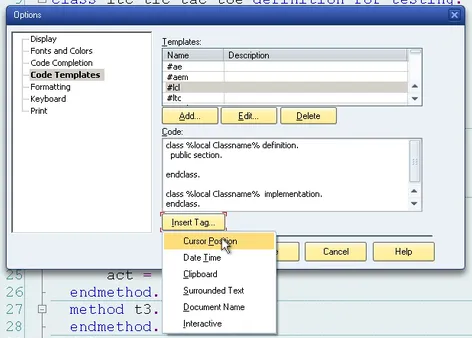
With the Button Insert Tag... you got some little helpers:
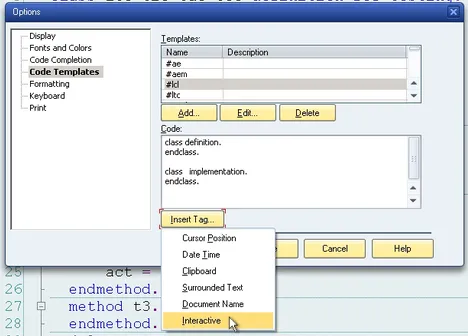
It is possible to insert some Variables this happens with the Percent-Sign.
The Pattern is: %<any_kind_of_useful_text>%
After Saving your Entry you can choose your Code-Templates in the ABAP Editor:
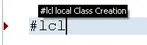
When you Type the Shortcut #lcl The Autocompletion suggest you the new created Template.
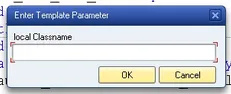
Hit CTRL + SPACE and you got the Template-Parameter Dialog to enter your local Classname:
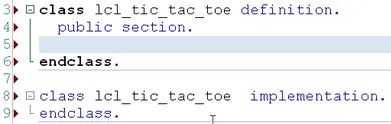
And here is the result:
local Test-Classes
SAP suggest to name your normal local Tesclasses with the Prefix LTC_
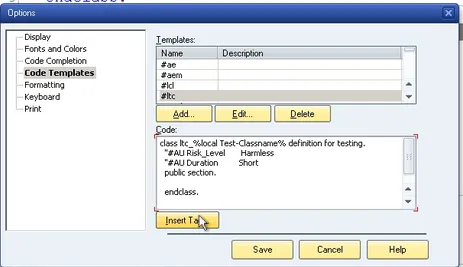
Shortcut-Name: #ltc Description: local Testclass till NW 7.00
class ltc_%local Test-Classname% definition for testing.
“#AU Risk_Level Harmless
“#AU Duration Short
public section.
|
endclass.
class ltc_%local Test-Classname% implementation.
endclass.
Please remember, that if you have an System above NetWeaver 7.00 your Testclass Definition will look a little diffrent:
Shortcut-Name: #ltc Description: local Testclass above NW 7.00
class ltc_%local Test-Classname% definition for testing
risk level harmless duration short.
public section.
|
endclass.
class ltc_%local Test-Classname% implementation.
endclass.
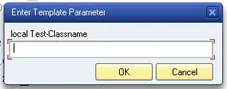
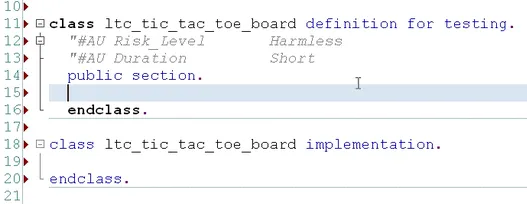
Again, after filling the Input-Parameter the Code is generated.
Testmethod Definition
Naming Conventions in every programming language is a philosophy of his own.
I recommand that you should use one style in your Company/Team.
I like the Standard which Roy Osherove explains on his homepage http://osherove.com/blog/2005/4/3/naming-standards-for-unit-tests.html .
The Point is, that I could easiliy understand the purpose of my written Tests if I described the intention in the Testmethodname by using the Pattern [MethodName_StateUnderTest_ExpectedBehavior]
Shortcut-Name: #tmdl Description: Testmethod Definition long Version with Pattern [MethodName_StateUnderTest_ExpectedBehavior]
%MethodName%_%StateUnderTest%_%ExpectedBehavior% for testing.
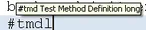
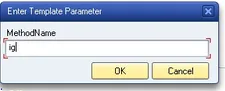
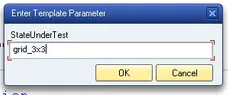
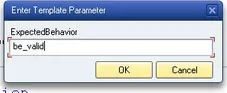

I think, now you are familiar with creating own Code-Templates. The following statements will only display my own used Templates 😉
Testmethod Implementation
If you create an Template for normal Methods or Testmethods it looks the same. So I use a more general Template for Implementing Methods:
Shortcut-Name: #mi Description: Implementation-Part of a Method
method %Method Name%.
|
endmethod.
The Problem in ABAP is that you have only can name your Objects (local classes, Testmethods, Fields) with a maximum length of 30 characters.
I found it useful when naming the objects to have an info how much characters are left till 30.
So I also created an Template for this:
Shortcut-Name: #line Description: Displays 30 Char length
“+++5+++10++++++++20++++++++30
assert_equals Statements
Please remember, that if you have an System above NetWeaver 7.00 SAP suggest to use the new Assertion-Class: CL_ABAP_UNIT_ASSERT.
Shortcut-Name: #ae Description: Assert_Equals Statement
cl_aunit_assert=>assert_equals(
exp = exp
act = act ).
Shortcut-Name: #aem Description: Assert_Equals with Message
cl_aunit_assert=>assert_equals(
exp = exp
act = act
msg = msg ).
fail Statement
Shortcut-Name: #fail Description: ABAP Unit fail Statement
cl_aunit_assert=>fail(
msg = ” ).
My experience is..
It took some time to figure out, which templates are working for me.
As a programmer you have your style, and every programming style is a little diffrent…
Try out other templates / commands. Look if it speed up your work.
Your experience is?
What is your experience with using the above Templates?
What was good and what could be implemented better?
Have you something diffrent that works for you?
Further Information
Editors in the ABAP World
- new ABAP Editor
- ABAP in Eclipse Integration http://scn.sap.com/community/abap/eclipse
- CT-Software http://www.ct-software.de/add-ons.htm
Blogs in this Series: